

Content Lab pipeline
The Content Lab is an AI ideation, research, and planning environment engineered to discover high-performing content angles, generate short-form video scripts, and manage editorial production across all major social platforms.
The 4-stage research pipeline
┌────────────────┐     ┌────────────────┐     ┌────────────────┐     ┌────────────────┐
│ 1. NICHE SCAN  │ ──> │ 2. VIRAL HOOKS │ ──> │ 3. SCRIPT GEN  │ ──> │ 4. CALENDAR    │
│ Competitor &   │     │ Psychological  │     │ 15-60s video   │     │ Multi-channel  │
│ topic analysis │     │ triggers       │     │ full scripts   │     │ scheduling     │
└────────────────┘     └────────────────┘     └────────────────┘     └────────────────┘
Core modules
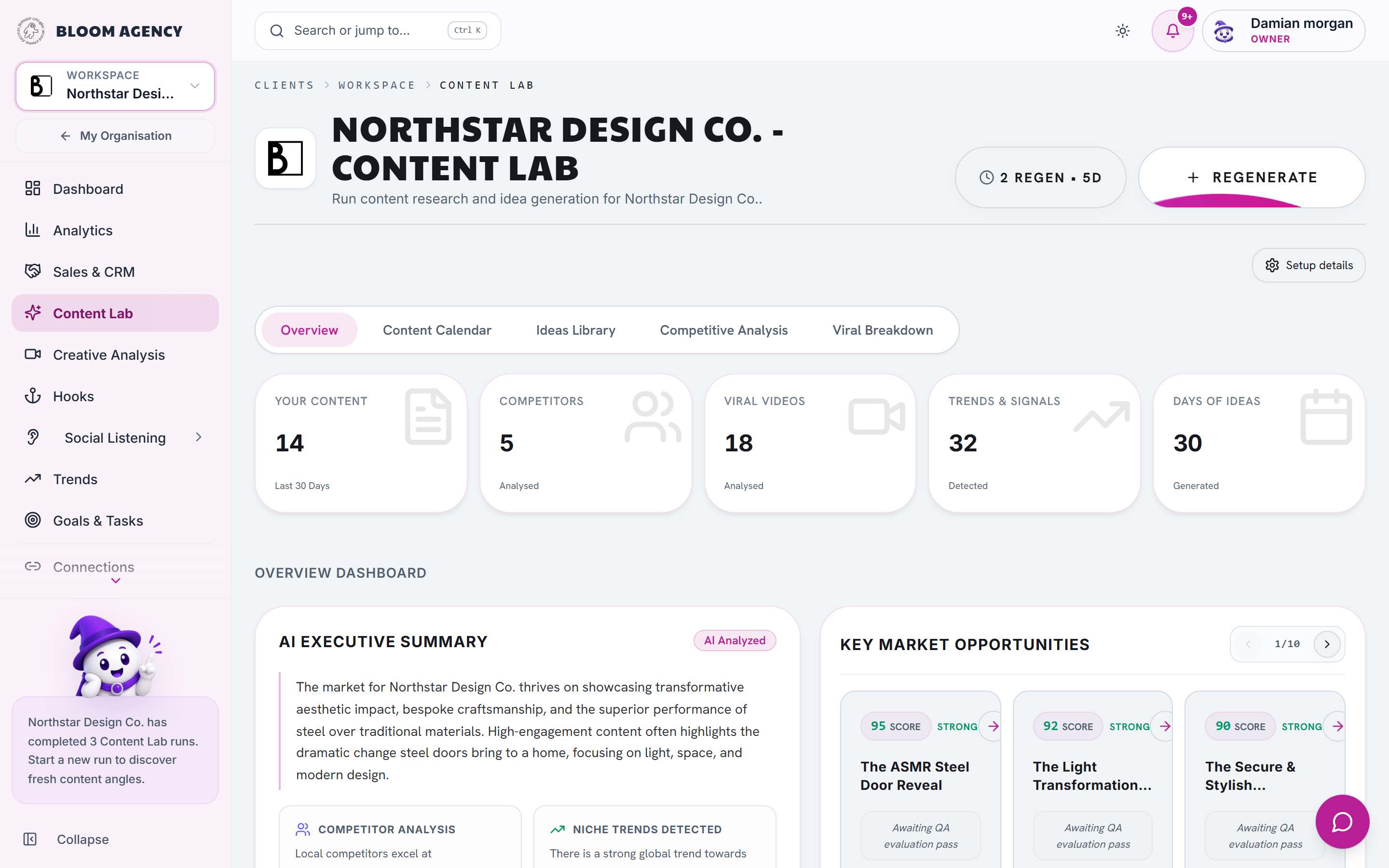
1. Overview and AI run generator
Trigger a fresh AI research run tailored to your client's current focus:
- Campaign topic or angle: e.g. "B2B SaaS churn reduction" or "Luxury kitchen design trends".
- Target audience profile: Junior practitioners, founders, high-net-worth homeowners.
- Output formats: Short-form video scripts (TikTok / Reels / Shorts), carousel slide decks (LinkedIn / Instagram), or text threads (X / Threads).
2. Editorial calendar and scheduling
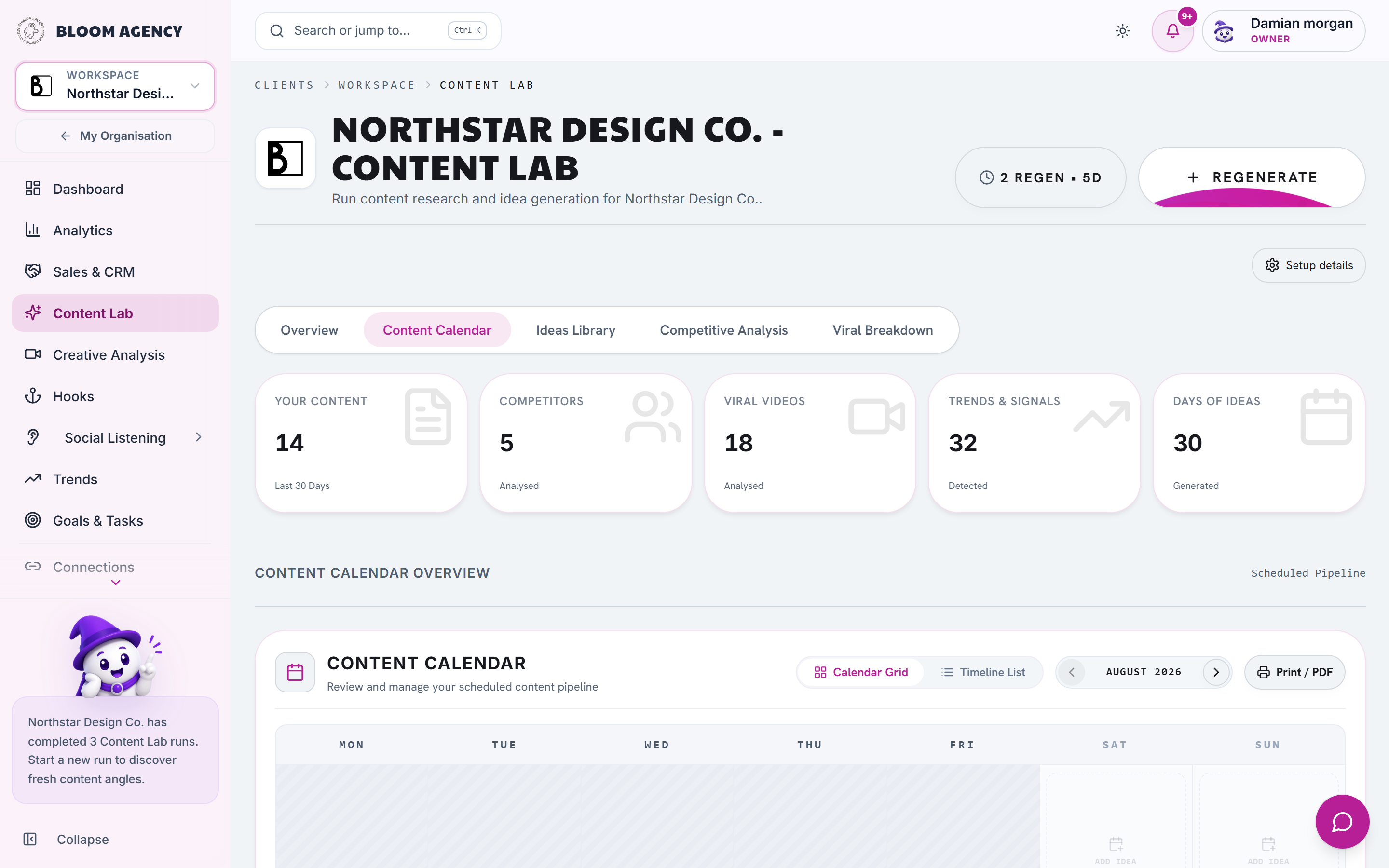
The Content Calendar provides a visual command center for your client's publication schedule with both Grid (Month) and Timeline (Weekly / List) perspectives.
Locking ideas against regeneration (Freeze & protect)
When you build a content schedule, you will frequently want to regenerate unapproved drafts while keeping your best ideas intact.
- How to lock an idea: Hover over any card on the calendar or idea library and click the Lock icon (🔒).
- Visual feedback: A locked concept displays an amber lock badge on its card and panel header.
- Regeneration protection: When you trigger Regenerate Schedule or launch a new AI batch, locked ideas are completely preserved in their scheduled calendar slots. Only unlocked concepts are refreshed or replaced.
- Unlocking: Click the lock icon again (🔓) to release the card if you want the AI to suggest a replacement angle.
TIP
Best practice for fast editorial cycles:
Review your generated calendar → Lock 🔒 the 3–5 concepts you like immediately → Hit Regenerate to replace the rest with fresh angles without losing your chosen posts.
Channel and platform filters
Toggle your calendar view to focus on specific marketing channels:
- Select the Platform dropdown in the calendar toolbar to switch between All Platforms, TikTok, Instagram, YouTube Shorts, LinkedIn, and Facebook.
- Platform pills on each card feature native branding and color-coded accents for quick recognition.
Client approval and revision workflow
Keep your team and client stakeholders aligned without external spreadsheets or email chains:
- Status workflow: Track production state from
Draft➔In Review➔Approved/Changes Requested➔Scheduled➔Published. - One-click approval: Stakeholders can click Approve Concept to lock in the script, or Request Changes to request adjustments.
- Inline revision notes: Open the Feedback & Notes tab inside any idea's details drawer to type actionable feedback. Notes save automatically to the cloud and remain linked to that specific concept.
PDF export and client-ready printouts
Generate branded PDF calendars with one click:
- Click the Print / Export PDF button in the calendar header.
- Select your orientation (Landscape / Portrait) and date range.
- The generator produces a clean, white-label visual calendar ready to attach to client emails or quarterly reviews.
3. Production drawer (7 production tabs)
Clicking any card opens the Idea Details Panel, providing a full production studio for creators, copywriters, and video editors:
┌──────────────────────────────────────────────────────────────────────────────────┐
│  CONCEPT  │  HOOKS (x5)  │  SCRIPT  │  SETUP  │  CAPTION  │  HASHTAGS  │  FEEDBACK  │
└──────────────────────────────────────────────────────────────────────────────────┘- Concept & strategy:
- Core premise, target audience archetype, emotional hook angle, and format category.
- Platform assignment (TikTok, Instagram Reels, YouTube Shorts, LinkedIn, Facebook).
- Quick workflow status selector (
Draft,In Review,Approved,Changes Requested,Scheduled,Published).
- Alternative hooks (Hook studio):
- Generates 5 distinct hook variations on demand for A/B testing: Spoken Question, Contrarian Statement, Data/Statistic Shock, Story Opening, and Visual Curiosity Trigger.
- Full 4-part production script:
- Hook (0-3s): Spoken opening + B-roll visual hook.
- Setup / Problem (3-15s): Context framing and tension building.
- Core value / Payoff (15-45s): Step-by-step insight, demonstration, or breakdown.
- Call-to-Action (CTA): Organic engagement driver (comment prompt, bookmark trigger, or bio link).
- Includes side-by-side Visual & Audio Cues for the video editor.
- Recording and setup guide:
- Equipment advice, lighting setup (e.g. Key light 45° + rim backlight), camera framing (e.g. Tight headshot / selfie hand-held), energy/tone pacing, and recommended props.
- Platform-tailored captions:
- Pre-written social captions formatted specifically for the chosen channel (clean paragraphs for Instagram, short punchy bullet points for TikTok, story-driven text for LinkedIn).
- Smart hashtag clusters:
- Grouped into Broad Discovery, Niche Industry, and Community / High-Intent tags with 1-click clipboard copy.
- Client feedback and revision notes:
- Review thread where clients and editors leave timestamped feedback or requested script tweaks.
4. Unscheduled ideas staging dock
Not ready to assign a date yet? The Unscheduled Ideas Dock sits alongside the calendar:
- Store freshly generated research runs in a staging pool.
- Drag and drop ideas from the dock directly onto any calendar day to schedule them.
- Drag scheduled cards back into the dock to postpone without deleting.
5. Content pillars and topic strategy
Organize client content into structured thematic pillars to ensure balanced editorial coverage:
- Custom pillars: Define brand pillars such as Educational / How-To, Industry Insights / Contrarian, Behind-The-Scenes / Culture, and Customer Case Studies.
- Pillar color-coding: Cards in the calendar and library inherit their pillar's color for instant visual distribution analysis.
- Pillar weighting: Configure AI research runs to prioritize specific pillars during sprint campaigns.
6. Persistent idea library and evergreen vault
Never lose a high-potential concept:
- Favorites (❤️): Mark evergreen angles to quickly filter and reuse them across seasonal campaigns.
- Pillar categorization: Filter concepts by core topic pillar (Educational, Contrarian, Behind-the-Scenes, Case Study, Product Teardown).
- Full-text search: Instantly search through script body copy, hooks, and call-to-actions.
7. Competitive analysis and benchmarks
Content Lab continuously scans top-performing organic creators and competitors in your client's industry:
- Hook pattern breakdown: Identifies why top competitor videos hook viewers in the first 3 seconds.
- Audience pain point mining: Analyzes competitor comments to discover questions potential buyers are asking.
- Differentiation angles: Suggests unique perspectives to stand out from generic market content.
- Viral post feed: Browse high-performing posts with performance metrics and "Why It Worked" analytical breakdowns.
8. Daily inspiration engine
Every morning, Content Lab surfaces a single, high-conviction content concept tailored to your client's niche, helping maintain consistent publishing momentum.
Step-by-step: running your first Content Lab batch
- Open your client workspace and select Content Lab from the sidebar.
- Click + New Research Run in the top action bar to open the ideation wizard.
- Step 1 — Production & focus settings:
- Select Filming Complexity (Solo Phone Shoot, Talking Head, B-roll Overlay, Skit, or Studio Pro).
- Optionally choose a target Platform, Specific Service/Product, or Custom Campaign Theme.
- Step 2 — Pre-flight checklist:
- Verify connected competitor handles and benchmark sources for niche relevance.
- Click Start Research Run – the AI will produce scripts complete with spoken hooks, visual B-roll cues, on-screen captions, and hashtags.
- Review the generated list, lock 🔒 your favorite ideas, drag them from the staging dock to the calendar, and share the schedule with your client for review.